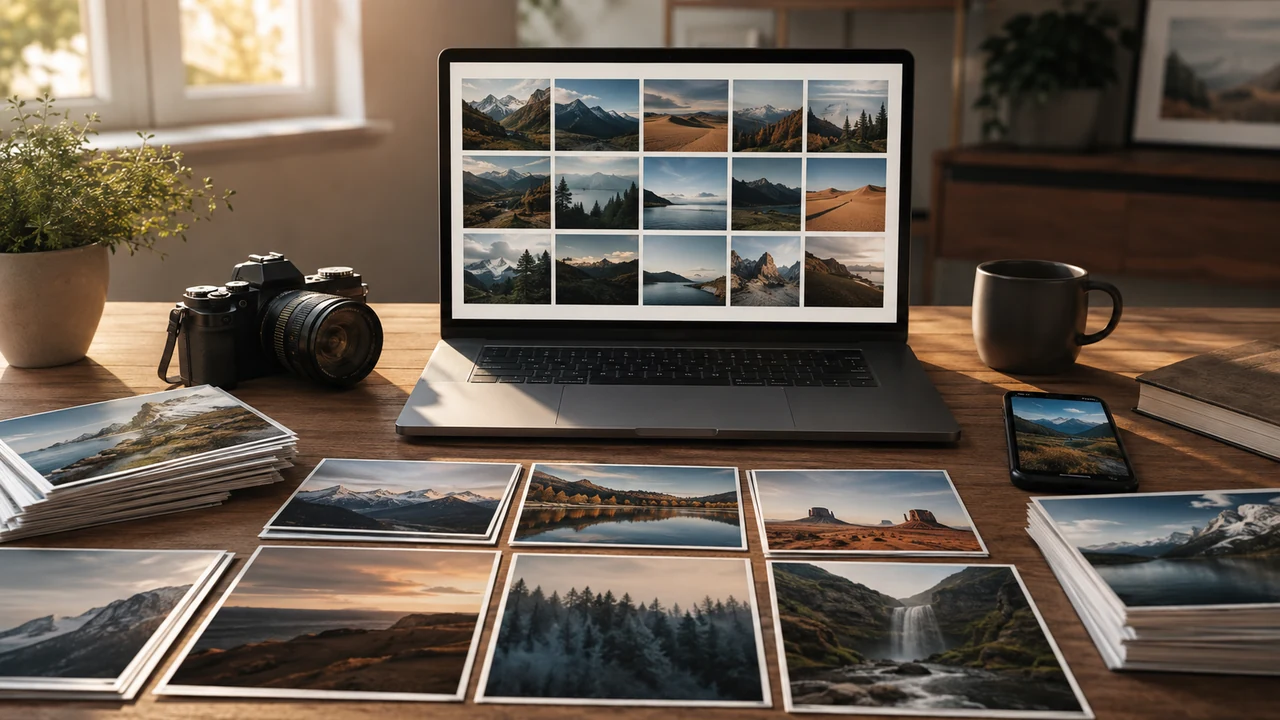
A photo library becomes valuable over decades, but it often grows through hurried imports. Phone pictures mingle with camera cards, screenshots, edited exports, scanned prints, and images sent by relatives. Albums may help for a while, yet finding one particular photograph can still mean endless scrolling. The solution is not to describe every image or force everything into a deep folder tree. It is to preserve trustworthy information and add a small amount of context where it pays off.
To organize a photo library you can actually search, build around the clues you naturally remember: approximate date, people, place, event, and subject. Dates provide the timeline; albums collect meaningful sets; descriptions clarify what the image itself cannot; and a backup protects the work. The method below works as a durable framework even though the controls and search capabilities of individual photo services differ.
Define what “searchable” means for you
Imagine five photographs you might want next year. Perhaps you would remember “Dad fixing the porch,” “our winter trip,” “the blue rental house,” or “the receipt for the damaged suitcase.” Write the phrases you would genuinely search. Those examples reveal your useful fields. A family historian may care about full names and relationships. A hobbyist may care about project, location, and technique. A parent may mainly need dates, child names, schools, and events.
Do not design around every possible detail. Choose a core that you can maintain: reliable date, broad event or subject, and names for the people who matter. Add place or a short description when it improves retrieval. Search quality comes from consistent, accurate clues, not maximum metadata.
Inventory the sources without moving them yet
List every place holding photos: phones, tablets, computers, camera cards, external drives, cloud accounts, messaging downloads, social exports, and boxes of prints. Beside each source, note its rough date range, whether it contains originals, and whether another copy exists. You do not need an exact count. You need a map that prevents a forgotten drive from surfacing after the cleanup.
Keep those sources unchanged while building the consolidated library. Import or copy in manageable batches, label each batch by source and date, and verify it before clearing a device or card. If a service offers an export, read its current official documentation so you understand formats, metadata, album information, and whether the export is complete. Interfaces and export behavior can change.
Make the incoming batch easy to recognize. A folder such as “Import Review—old laptop—2026-09” records provenance without pretending the contents are organized. A consistent file-naming system can help with scans and exported sidecar files, but avoid mass-renaming camera originals until you know which metadata your photo application uses.
Choose a primary library and an archive
A primary library is the place you browse, edit, and search. Pick one that works with your devices and supports the information you care about. An archive is an independently stored copy of originals and essential metadata. These roles should not be confused. Synchronizing the primary library across devices improves access, but a deletion or bad edit may synchronize too.
Before committing, test the proposed primary library with a small mixed sample: phone images, camera files, a video, a screenshot, an edited image, and a scan. Confirm that dates display properly, edits behave as expected, and exported files remain usable. Check current official documentation for supported formats, download behavior, metadata handling, and account recovery. Preserve originals outside the test.
Fix the timeline before building albums
Capture dates are often the strongest search and browsing signal. Phone and camera images usually contain them, but scanned prints may inherit the scan date. Photos saved from messages may use the download date. An incorrectly set camera clock can shift an entire trip, and travel across time zones can place midnight images on an unexpected day.
Start with meaningful groups rather than isolated images. If a scanned envelope is labeled “Summer 1988,” apply an approximate date consistently only if your software supports it and you retain that uncertainty in a note. If the exact day is unknown, do not invent it. For a camera-clock error, determine a reliable offset using a known moment, test it on copies, and follow the application’s documented date-adjustment process.
Keep a simple correction log for large batches: source, original range, adjustment, reason, and date changed. That record is invaluable if a correction later proves wrong.
Use the right tool for each kind of context
Dates, albums, descriptions, filenames, and location fields solve different retrieval problems. Use each deliberately rather than repeating the same long label everywhere.
| Information | Best use | Example |
|---|---|---|
| Capture date | Chronology and narrowing to a period | A known month for a scanned family event |
| Album | A curated event, project, person, or theme | Kitchen renovation or family reunion |
| Description or caption | Context that is not visually obvious | Full names, relationship, occasion, or story |
| Location | Finding images by a meaningful place | Park, neighborhood, or trip destination |
| Filename | Portable identification outside the photo app | Date, event, and sequence for a scanned batch |
Build a small album structure
Albums should express collections you expect to revisit, share, or work on. Useful examples include a major trip, a home project, a child’s school year, family history by branch, or photographs awaiting print. Avoid making an album for every ordinary day. The timeline already handles chronology, and search can retrieve well-described subjects.
Use names that distinguish similar events. “California—coast trip—spring” is more helpful than “Vacation,” while a year can separate recurring holidays or school events. Keep album nesting shallow if your application offers folders. Deep structures create multiple plausible homes and are harder to reproduce when moving services.
An image can often belong to several albums without creating another file, but confirm how your chosen application handles albums. An album may be only a view, not an independent copy. Removing an item from an album and deleting it from the library can have very different consequences, so use a disposable test image and current documentation when uncertain.
Add descriptions where memory needs help
Descriptions are most valuable when the image cannot answer the likely question. Identify people with the names future viewers will know, explain a family relationship, record the name of a small venue, or state why an ordinary-looking object mattered. For a scanned print, transcribe useful writing from the back without discarding the original scan of that writing.
Write compact factual phrases rather than essays. “Maya Chen and Aunt Rosa at the community garden opening” contains strong search terms. Avoid claims you are unsure about; mark uncertainty plainly, such as “possibly at the Oak Street apartment.” Selective honesty is more useful than confident misinformation.
Prioritize anchor photos: the best overview of an event, clear portraits of important people, family-history images, major projects, and images whose context would otherwise disappear. Describing a few anchors can make an entire dated album understandable.
Approach automated recognition as an index, not truth
Some photo applications can group faces, recognize objects, read visible text, or infer locations. Availability and behavior vary, and automated results can be wrong. Use these features to surface candidates, then verify important identifications yourself. Consult current provider documentation for how recognition data is created, corrected, stored, and removed.
Consider privacy before naming people or enabling cloud analysis. A convenient label may reveal sensitive relationships or locations to anyone with access to the account or a shared album. Review sharing settings, account security, and recovery options. Apply names only when the benefit justifies the exposure, and do not treat a suggested identity as established fact.
Separate clutter from memories
Screenshots, memes, shopping references, burst sequences, and accidental pocket images can overwhelm search results. Give temporary images a review path rather than mixing them indefinitely with photographs. A recurring screenshot review works well: extract needed information, file true records elsewhere, and move disposable images to trash.
Use caution with images that look useless. A blurry frame beside a good photograph may still contain a better expression or contextual sign. A screenshot may document a payment or conversation you need. Review in event-sized batches, not as a rapid stream of thumbnails.
Deduplicate without losing the best version
Exact duplicates are easier than near-duplicates. If a trusted tool compares file content, it can identify candidates even when names differ. Still, review the proposed action and use quarantine or trash rather than immediate permanent deletion. Near-duplicates demand judgment: one may have better resolution, correct color, an important edit, complete metadata, or a wider crop.
For each set, choose an original or master and any genuinely useful edited version. Confirm that albums, descriptions, and sharing will not be lost when the rejected copy is removed. Do not assume a provider’s duplicate feature uses the same rules as another provider. Test on a recoverable sample and follow current official instructions.
If storage pressure is driving the project, follow the cautious cloud-storage cleanup process: verify an independent copy, quarantine uncertain files, and delay permanent deletion.
Preserve edits and original files
Photo applications may store edits nondestructively, meaning the displayed version depends on both the original and edit instructions. An ordinary file copy or export may flatten those edits, omit them, or produce an additional rendered file. Before migrating or archiving, test how originals, edited versions, metadata, videos, and special formats are exported.
Keep the untouched original when it has long-term value, plus a high-quality rendered version when the edit itself matters. Record unusual workflows in a short readme stored with the archive. This reduces dependence on remembering which application created a particular look.
Back up the library and test restoration
Maintain an independent backup that does not automatically mirror every deletion from the primary library. For a large collection, follow a practical personal file backup routine and include both original media and any essential metadata or database exports your workflow needs.
A backup is credible only after a restore test. Select items from different years and sources, restore them to a separate temporary location, and open them. Play videos, inspect full-resolution photographs, and confirm that important descriptions or accompanying metadata are available. Repeat after a major import or migration. Keep old sources until the primary library and independent backup pass verification.
Process the backlog in passes
Trying to perfect years of photos in one sweep leads to fatigue and risky decisions. Use passes. First consolidate and back up. Next correct obvious date problems. Then remove confident clutter and exact duplicates. Build albums for the events you revisit. Finally add names and descriptions to anchor photos. Each pass delivers value even if you pause.
Work by source or event, and record the last completed batch. A modest weekly session is easier to sustain than a marathon. New imports should follow a shorter version of the same process: import, verify, back up, remove obvious clutter, and add context to the keepers.
Frequently asked questions
Do I need to rename every photo file?
No. Many photo tools search embedded dates, descriptions, people, places, and albums without relying on filenames. Rename when it improves portability or identifies scanned and exported batches, but preserve extensions and test the workflow first.
What should I do with scanned photos that have unknown dates?
Use the most accurate range you can support and record uncertainty in a description or batch note. Do not invent an exact date. Keep clues such as envelope labels, handwriting, and the order of the original group.
Are albums a backup?
No. An album is generally an organizational view inside a library. It may not create a separate copy, and deleting from the main library may affect the album. Maintain an independent, verified backup of the underlying files and necessary metadata.
Should I trust automatic face or object labels?
Treat them as suggestions that improve browsing, not authoritative identifications. Verify people and sensitive context yourself, review privacy implications, and consult the provider’s current controls.
Final photo-library checklist
- List every device, account, card, drive, export, and box containing photos.
- Choose one primary library and a separate independent archive.
- Test imports, exports, formats, metadata, and edits with a sample.
- Correct meaningful date errors without inventing unknown details.
- Create a small set of purposeful, clearly named albums.
- Add concise descriptions to anchor photos and uncertain historical images.
- Quarantine duplicate candidates before permanent deletion.
- Test a restore before clearing any original source.
- Use a repeatable routine for each new batch.
A searchable photo library is not a perfectly labeled museum. It is a trustworthy collection with enough structure to reconnect a remembered person, place, event, or story to the image you wanted—and a recovery plan that keeps that work safe.