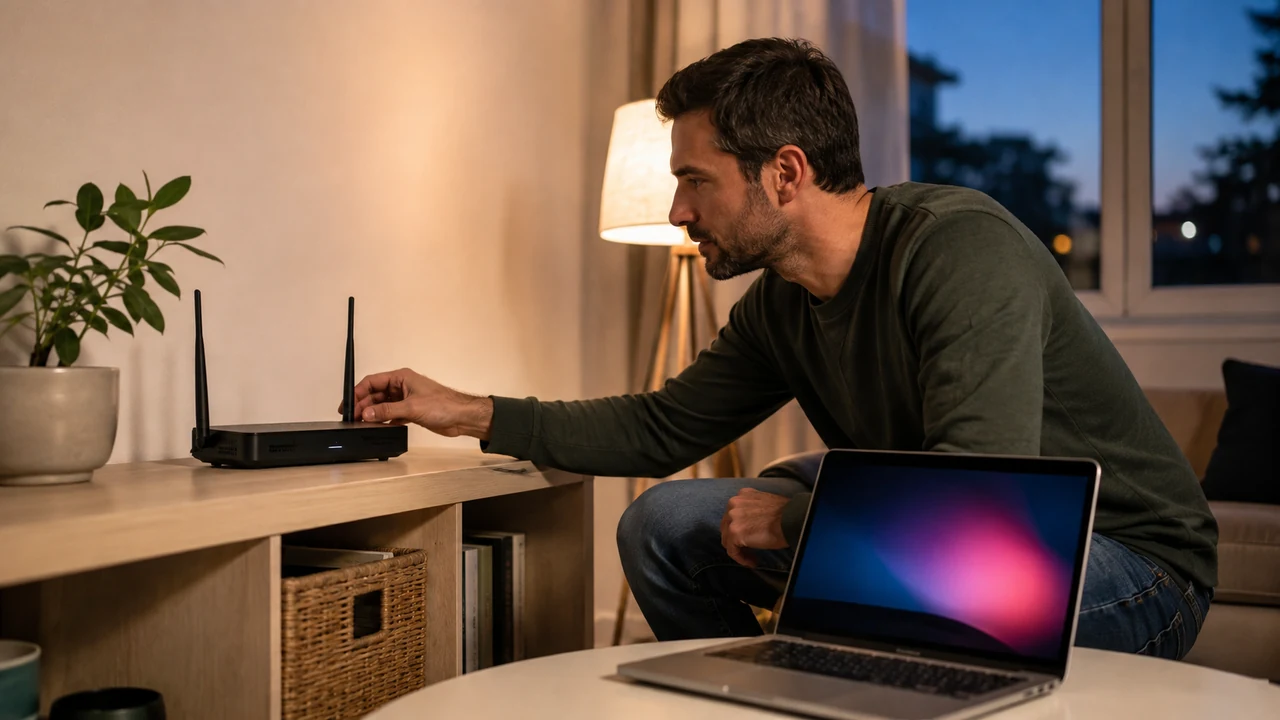
To troubleshoot slow Wi-Fi at home, resist changing five settings at once. First define what feels slow, then compare one device with another, one location with another, and Wi-Fi with a wired connection if one is safely available. That sequence separates a device problem from weak radio coverage, a router issue, or trouble beyond your home.
Preserve recovery before changing anything. Save current network names, router access instructions, and any provider-specific connection details in a protected place. Take screenshots or notes of settings you intend to alter, but do not include passwords in unprotected notes. Avoid a factory reset until current official documentation confirms what it erases and you know how service will be restored.
Describe the problem precisely
“Slow Wi-Fi” can mean web pages pause, video quality drops, calls freeze, downloads crawl, games lag, or a device disconnects. Write down the affected activity, device, room, and approximate time. Note whether the problem is constant, begins after the device wakes, appears only during busy evening hours, or affects one service. This small record keeps the investigation grounded.
Separate speed from responsiveness and stability. A connection may deliver a large download well but feel poor during a call because of delay or brief interruptions. Conversely, one overloaded website can be slow while the network is healthy. Try two or three ordinary activities and more than one reputable destination before concluding the whole connection is at fault.
Pause large transfers, cloud synchronization, system updates, and high-resolution streams that you control, then repeat the same activity. Do not cancel an update while it is installing or interrupt a backup without checking its status. If storage or background tasks are also making a computer sluggish, review the guide for a device running out of storage rather than assuming every pause comes from Wi-Fi.
Create a small test matrix
Use at least two devices if possible: the affected device and another known to work normally. Test them in the same room, at roughly the same time, using the same destination or activity. Then take one device near the router and repeat. Keep power-saving state and major background activity comparable. The goal is not a perfect laboratory measurement but a fair comparison.
| Test result | Likely area to examine | Next useful check |
|---|---|---|
| One device is slow everywhere | That device, its software, or saved network profile | Restart it, update through supported controls, and compare its settings |
| All devices are slow in one room | Coverage, obstacles, interference, or placement | Test closer to the router and change placement cautiously |
| All devices are slow everywhere | Router, modem, provider link, or shared demand | Check status, restart safely, and compare a wired device |
| Wi-Fi is slow but wired is normal | Wireless coverage, radio settings, or interference | Inspect placement and use supported automatic settings |
| Both wired and Wi-Fi are slow | Internet service, gateway, cabling, or heavy usage | Check connections, provider status, and direct gateway testing |
A single internet speed test is only a snapshot. If you use one, select the same server or automatic method, run a few tests under similar conditions, and record the range rather than celebrating the highest result. Speed tests can consume data and temporarily compete with calls or streams. On a metered plan, check your terms before repeated testing.
Check the simplest local causes
Confirm the device is connected to the intended home network, not a guest network, mobile hotspot, extender with poor backhaul, or a neighbor’s similarly named network. If you have separate network names, note which one is in use. Do not “forget” the network until you know the password and any special sign-in requirements.
Move temporarily into the same room as the router with a clear path when practical. If performance improves substantially, the internet service may be fine and coverage deserves attention. Walls, floors, metal, mirrors, appliances, aquariums, cabinets, and distance can weaken or distort radio signals. The effect depends on the home, so testing placement beats a universal rule.
Check that antennas, if the manufacturer provides adjustable ones, match current official placement guidance. Keep the router in an open, stable, ventilated location, away from liquids and heat. Do not bury it in a cabinet to hide cables, stack objects on it, or move provider equipment where its incoming cable must be sharply bent or strained.
Restart devices in a controlled order
Restart the affected phone or computer normally. This can clear a stalled network process without erasing settings. If several devices remain slow, consult the router or provider gateway instructions for the supported restart procedure. A restart is not the same as a factory reset; avoid any recessed reset button unless you have deliberately prepared for full reconfiguration.
If the setup has a separate modem and router, document which cable goes where. Follow the manufacturers’ or provider’s current sequence and indicator guidance. Allow each unit the stated time to reconnect rather than repeatedly unplugging it. Do not disconnect fiber connectors, open service boxes, or handle damaged cabling. If equipment smells hot, sparks, swells, or shows power damage, disconnect only if safe and contact the provider or qualified support.
After the restart, repeat the same test in the same place. If the improvement lasts only briefly, record that pattern. Recurring degradation can indicate overheating, software trouble, failing hardware, congestion, or a provider issue; repeated power cycling hides the evidence without resolving the cause.
Compare Wi-Fi with a wired connection
If the router and a computer support it, and you have a known-good compatible cable, connect directly using the documented network port. Disable Wi-Fi on that test computer so you know which path is active. Keep the cable away from walkways, and never force a connector into a port. Run the same activity or test you used over Wi-Fi.
Normal wired performance alongside slow Wi-Fi points toward wireless coverage, interference, or radio configuration. Poor performance on both paths points toward the gateway, incoming service, shared demand, or the test device. This is not absolute proof, but it sharply narrows the next conversation with support.
If you cannot test wired, comparisons near and far from the router still help. You can also inspect the router’s official management interface for connection status, but reach it only through the documented local address or provider app. Avoid links in unsolicited messages that claim your router requires urgent attention.
Look for household demand
List what might be transferring data: televisions, game downloads, cloud photo uploads, security cameras, work calls, backups, and visitors’ devices. Pause only activities you recognize and control. Do not block an unfamiliar device immediately; first identify whether it is a renamed household product. If you genuinely suspect unauthorized access, move to the home Wi-Fi security guide and preserve access before changing credentials.
Router interfaces may show connected clients or usage, but labels can be cryptic and accounting may be incomplete. Match hardware addresses or device details through official instructions. Avoid installing an unknown “network scanner” that demands broad permissions. Built-in router, operating-system, or provider tools are a safer starting point.
If slowness consistently appears when a known transfer runs, schedule that task differently or use documented traffic-management controls only if you understand them. Advanced priority settings can create new bottlenecks. Save the original configuration and change one item at a time.
Check the affected device
For one-device problems, restart the device, close unneeded high-traffic apps, and install supported operating-system and network-driver updates through official controls. Preserve current work and backups first. If the problem began immediately after an update, consult the device maker’s current support information instead of downloading a replacement driver from an aggregator.
Temporarily disconnect a privacy tool, VPN, filtering service, or security app only if you installed it, understand the exposure, and can restore it. A slower result through such a service may reflect its route rather than Wi-Fi. Do not weaken managed work or school controls; ask the responsible administrator.
Forgetting and rejoining a network can repair a damaged saved profile, but it removes stored connection details. Confirm the correct password and recovery path first. Do not reset all network settings casually because that may remove other Wi-Fi networks, paired devices, cellular preferences, or managed configurations depending on the platform. Read the device-specific warning before proceeding.
Improve router placement before buying hardware
Place the primary wireless unit as centrally and openly as the incoming connection and safe cabling permit. Elevation can help in some layouts, but stability, ventilation, and manufacturer guidance come first. Test after each move. A few feet and a clearer path may matter more than an expensive replacement, while some dense or unusually shaped homes genuinely need additional coverage.
If you use an extender, mesh system, or additional access point, test near the primary router first and then near the secondary unit. A strong signal from an extender does not guarantee that the extender has a good path back to the main network. Follow that system’s placement guidance, update it through official controls, and avoid mixing undocumented modes.
Do not buy a new router solely because a phone displays fewer signal bars. Different devices represent signal differently. Base the decision on repeated real-use tests, support status, coverage needs, available wired paths, and compatibility with provider service. If renting equipment, ask the provider what troubleshooting or replacement process applies before purchasing duplicates.
Review settings conservatively
Sign in through the documented router interface, using a device already connected to your network. Before changing anything, export a configuration backup if the manufacturer supports it and it can be stored securely; otherwise capture non-secret settings. Ensure you can recover administrative access. The article on how to store account recovery information safely offers a practical way to document access without leaving passwords exposed.
Automatic channel and band-selection features are often a sensible baseline, but behavior varies by model and environment. Use the current official guide for your device. If you manually test a radio setting, record the original value, change one setting, and compare over time. Avoid copying a stranger’s complete configuration: location, nearby networks, hardware, and software differ.
Install router firmware only through its supported update process. Keep power stable and do not interrupt an update. If the model no longer receives security support, plan a replacement compatible with your provider and household needs rather than installing unofficial firmware as an improvised fix.
Know when the provider should investigate
Check the provider’s official service-status route using cellular data if necessary. Record when trouble occurs, which devices are affected, indicator states, results near the router, and wired comparisons. This evidence helps support distinguish a local wireless problem from an incoming-line or account issue without repeating every basic step.
Contact the provider if both wired and wireless tests remain poor, the gateway cannot establish its documented service connection, outside cabling appears damaged, or outages repeat. Do not climb, open utility enclosures, or repair provider wiring. Ask what remote changes or resets support proposes and what settings they could erase before consenting.
Frequently asked questions
Should I factory-reset my router?
Usually not early in troubleshooting. A factory reset can erase network names, passwords, provider details, and custom settings. Use it only after checking current official instructions, preserving what you need, and confirming how to restore service.
Does a strong Wi-Fi icon mean the internet should be fast?
No. It mainly reflects the device’s radio connection to a nearby wireless point. The router’s internet link, household demand, delay, interference, and the destination can still limit performance.
Will changing the network password make Wi-Fi faster?
Not by itself. It may help if unauthorized devices are consuming service, but it also disconnects every legitimate device. Identify clients and preserve recovery before changing credentials.
When should I replace the router?
Consider replacement when official support has ended, hardware is failing, the provider confirms incompatibility, or measured coverage needs exceed the equipment’s capabilities. Verify the diagnosis before spending money.
Why is Wi-Fi slow only in one room?
Distance, building materials, interference, and secondary-unit placement are common explanations. Compare performance near the router, move equipment cautiously, and follow official coverage guidance before adding hardware.
Final Wi-Fi troubleshooting checklist
- Record the affected device, room, activity, and time.
- Compare two devices under similar conditions.
- Test near the router and in the problem location.
- Pause known heavy transfers and repeat the same task.
- Restart devices and network equipment through supported procedures.
- Compare wired and wireless performance when safely possible.
- Inspect placement, ventilation, cables, and documented status lights.
- Back up settings and access information before configuration changes.
- Change one setting at a time and record the result.
- Give the provider clear observations when the fault appears upstream.
A good troubleshooting result is not merely one fast test. It is a repeatable explanation of where performance changes and which action fixes it without sacrificing security or recoverability. Work from simple comparisons toward advanced changes, and stop before destructive resets unless the official recovery route is clear.