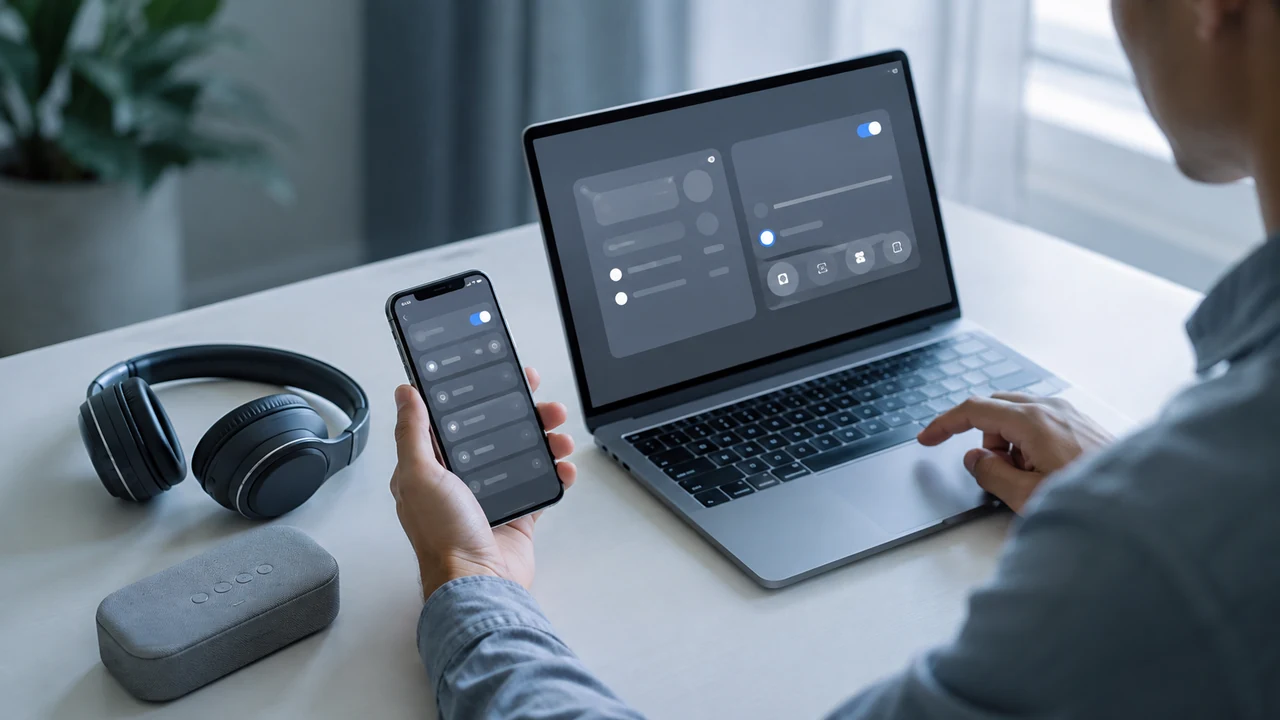
Bluetooth trouble can make a working accessory seem broken. Headphones connect to the wrong computer, a keyboard appears but will not pair, audio stutters, or a device vanishes after an update. These symptoms have several possible causes, so the fastest reliable approach is not a dramatic reset. It is a short sequence that preserves settings, changes one variable at a time, and identifies which side of the connection is failing.
Bluetooth behavior varies by device, operating system, accessory, and supported profile. Menu names and reset procedures also change. Use this guide as a diagnostic framework, then defer to the current official instructions for your exact models before deleting data, resetting network settings, updating firmware, or opening hardware.
Identify the exact Bluetooth problem
“Bluetooth is not working” is too broad to guide a fix. Decide whether the device is undiscoverable, visible but unable to pair, paired but unable to connect, connected with the wrong function, or connected with unstable performance. Note when the problem started and whether anything changed: a new phone, an operating-system update, travel, a drained battery, or pairing the accessory with another host.
Confirm that Bluetooth is enabled on the host and that airplane mode or a similar connectivity control is not changing it. Look for a physical power switch, wireless switch, or pairing button on the accessory. Some devices use different button holds for power and pairing, and indicator patterns are model-specific. Consult the manufacturer’s current guide rather than guessing at a long press.
Start with low-risk checks
Charge the accessory and, if relevant, its charging case. A light may indicate case power rather than the accessory’s own charge, so verify according to its manual. Inspect charging contacts and cables without inserting metal tools or applying liquid. If a port needs attention, follow safe methods such as those in our guide to cleaning charging ports and electronics, along with the maker’s device-specific directions.
Bring the two devices into the same room and remove obvious physical obstructions. Turn the accessory off and on normally, then restart the phone, tablet, or computer. A restart clears temporary software state without erasing saved networks or pairings. Reopen the Bluetooth settings and wait briefly; discovery is not always instantaneous.
Make sure the accessory is not already connected elsewhere. Headphones used with a laptop yesterday may reconnect to it before today’s phone can claim them. Temporarily turn off Bluetooth on nearby previously paired hosts, or disconnect the accessory through their normal controls. Do not remove every saved pairing yet.
| Symptom | Useful first check | What the result suggests |
|---|---|---|
| Device never appears | Confirm pairing mode and adequate charge | Discovery or power issue |
| Device appears but pairing fails | Restart both sides and verify no other host is connected | Stale session or competing connection |
| Connected but no sound | Check output selection and app routing | Audio route rather than radio failure |
| Frequent dropouts | Test nearby in a different location | Range, obstruction, or interference |
| Only one host fails | Test a known-working accessory on that host | Host setting, software, or hardware issue |
When a device pairs but will not connect
A saved pairing is a record, not proof of an active connection. Select the accessory in Bluetooth settings and use its normal Connect control if available. If it immediately disconnects, check its battery and competing hosts. For accessories capable of remembering several hosts, do not assume they can actively serve all of them at once; behavior depends on the specific product.
If normal reconnection fails after restarts, forgetting the single affected accessory and pairing it again is a reasonable next step. First make sure you know how to place it in pairing mode and preserve any configuration you care about. Remove only that relationship, not all Bluetooth or network settings. Pair again from close range and respond only to prompts you initiated. Do not accept an unexpected pairing request in a public place.
Fix connected audio that is silent or wrong
A “connected” label does not guarantee that an app is sending audio to the accessory. Open the host’s sound controls and select the intended output. Check the volume on the host, accessory, and calling or media app, because each may have a separate level or mute. If a call uses the wrong microphone, select the intended input inside the calling app and its operating-system sound settings.
Disconnect other audio accessories during diagnosis. Docks, displays, hearing devices, and previously paired speakers can become preferred outputs. Test system audio and a local recording before blaming one website or meeting service. For a broader setup covering microphone placement and call checks, see how to improve video call quality.
Call audio may sound different from music because the device and app must handle microphone input as well as output. Exact modes and options vary, so use the official documentation for the accessory, operating system, and app. Avoid installing an unknown “Bluetooth fixer,” codec pack, or driver from a download advertisement.
Reduce dropouts and stuttering
Test at short range with a clear path between devices. Keep the phone out of a tightly packed bag and avoid placing a computer behind large metal objects. Move away from crowded wireless equipment and test in another room. If the problem disappears, the accessory may be healthy and the original environment may be the cause.
Pause unnecessary wireless transfers and disconnect unused Bluetooth devices for one test. If Wi-Fi is also unstable, diagnose it separately using the home Wi-Fi troubleshooting sequence. Do not reconfigure the router as the first Bluetooth fix. Router changes can disrupt the household and make it harder to tell which action mattered.
Battery level can affect stability before a device shuts down. Fully charge both sides and repeat the same playback or typing test. For headphones, make sure both earpieces seat and charge as their maker specifies. For a keyboard or mouse with replaceable batteries, use the correct type and orientation and inspect for leakage. Follow official safety guidance for damaged cells; do not recharge a battery that is not designed to be rechargeable.
Separate host, accessory, and environment
Cross-testing is the most useful step before replacement. Pair the suspect accessory with another compatible phone or computer. Then test a known-working Bluetooth accessory with the original host. Keep the location and distance similar. This creates a simple matrix: failure following the accessory points toward the accessory; several accessories failing on one host points toward that host; both working elsewhere points toward the original environment or configuration.
Compatibility still matters. A device being discoverable does not mean every feature is supported by every host. Check the official specifications and support pages for both products, including operating-system requirements. Avoid assuming that a new driver or adapter will add a feature unless the manufacturers explicitly document that combination.
Handle updates carefully
Check for operating-system, computer driver, accessory app, and firmware updates only through official update mechanisms. Read release information when available and back up important work before system changes. Keep portable devices charged or connected to suitable power during firmware installation, and do not interrupt an update. The planning approach in our device update routine helps preserve recovery options.
If trouble began immediately after an update, document the device models, software versions, error wording, and tests already completed. Check the maker’s current support guidance for known issues and approved recovery steps. Do not download an older driver or firmware image from an unofficial archive. A rollback may be unsupported or may create security and reliability problems.
Use resets as an escalation, not a reflex
Reset terminology is inconsistent. An accessory reset might clear pairings, preferences, calibration, or other stored data. A phone’s network reset may also remove saved Wi-Fi networks and related settings. Before proceeding, read the exact official instructions, note what will be erased, save information needed for recovery, and confirm that you can reconnect essential services afterward.
Prefer the narrowest documented reset: the individual pairing before the accessory, and the accessory before broad host network settings. Photograph or write down meaningful configurations without capturing passwords or sensitive identifiers unnecessarily. If the device is managed by an employer or school, contact its administrator rather than changing restricted settings.
A disciplined troubleshooting sequence
- Define the symptom. Record whether discovery, pairing, connection, routing, or stability fails.
- Confirm power and mode. Charge both sides and follow the official pairing instructions.
- Remove competition. Disconnect nearby hosts that may have reclaimed the accessory.
- Restart both sides. Retest before deleting any saved relationship.
- Check the intended function. Select the correct audio input, output, or device inside the relevant app.
- Change the environment. Test nearby with fewer obstructions and less wireless activity.
- Cross-test. Use another compatible host and a known-working accessory.
- Update through official channels. Preserve power, work, and recovery options.
- Reset narrowly if documented. Understand exactly what the reset erases.
Keep notes as you go. Record the test, result, and any setting changed. Restore changes that did not help. This prevents repeated experiments and gives support staff useful evidence if the issue remains.
Know when to stop
Stop using an accessory if it becomes unusually hot, smells burnt, has a swollen battery, exposes wiring, or has liquid damage. Move it away from flammable material only if doing so is safe, do not charge it, and follow the manufacturer’s current safety and service instructions. Do not open a sealed battery device or attempt a repair outside your skill and the maker’s approved procedure.
Replacement becomes reasonable when controlled tests consistently isolate the accessory, compatibility has been confirmed, supported recovery steps fail, and repair is unavailable or impractical. Preserve purchase and service records, remove personal data using official instructions when possible, and use an appropriate electronics or battery recycling channel. Do not discard a lithium battery in ordinary trash; follow current local and manufacturer guidance.
Frequently asked questions
Why does my Bluetooth device connect to the wrong phone?
It may be reconnecting to a previously paired host that is awake and nearby. Disconnect it from that host or temporarily turn off Bluetooth there, then connect from the intended phone. Consult the accessory guide if it supports a documented host-switching method.
Should I forget the device and pair it again?
Yes, after checking charge, pairing mode, competing hosts, and a normal restart. Forget only the affected pairing first. Confirm that you know the correct pairing procedure and that removing it will not discard configuration you need.
Why is Bluetooth audio choppy only in one room?
Distance, physical obstructions, or local wireless congestion may be contributing. Repeat the same test close to the host in another location. If it becomes stable, focus on placement and the environment rather than replacing the accessory.
Will resetting network settings fix Bluetooth?
It sometimes addresses corrupted host configuration, but it can erase more than Bluetooth information. Treat it as a later step, read the current device documentation, record what will be removed, and prepare to restore essential connections.
How can I tell whether the phone or accessory is faulty?
Cross-test. Try the accessory with another compatible host and a known-working accessory with the original phone. Repeated results across those tests are more informative than repeatedly toggling one setting.
Final Bluetooth checklist
- Name the precise discovery, pairing, connection, routing, or dropout symptom.
- Charge both devices and verify the documented pairing mode.
- Check for a connection to another nearby host.
- Restart both sides before removing pairings.
- Confirm the correct input, output, and app device selection.
- Test nearby in a different environment.
- Cross-test with another compatible host and accessory.
- Install updates only through official channels.
- Record settings and consequences before any reset.
- Stop using damaged, swollen, hot, or unsafe equipment.
Most Bluetooth failures become manageable when you stop treating them as one mystery. Preserve what works, narrow the symptom, compare both sides of the connection, and escalate carefully. That process gives a working device the best chance of recovery—and gives you solid evidence when repair or replacement is truly warranted.