To make your phone battery last longer, focus on a few high-impact habits rather than watching the percentage all day. Screen use, weak network conditions, background activity, navigation, games, video, and temperature can all change how quickly a charge disappears. Your goal is enough dependable runtime for your day, not a perfect battery graph.
Battery controls and charging behavior vary among phones, operating-system versions, and battery types. Use the current official support instructions for your exact model before changing advanced settings, cleaning a port, replacing a battery, or responding to a safety warning. Avoid rigid internet rules that promise a specific lifespan or insist that one charging percentage fits every device and routine.
Decide what “lasting longer” means
Battery advice is more useful when attached to a real problem. Perhaps the phone dies before dinner, loses too much charge overnight, struggles on travel days, or has recently changed behavior. Write down when the problem occurs and what you were doing. A navigation-heavy day is not comparable with a quiet day at home, and poor coverage can make an otherwise normal phone work harder.
Choose a practical target such as reaching bedtime without charging or preserving enough power for the commute home. That target helps you accept sensible tradeoffs. Lower brightness may be nearly invisible indoors but inconvenient outside. Restricting an app may save energy but delay information you genuinely need. Battery life serves the phone’s purpose; it is not the purpose itself.
Check the built-in battery view first
Most current smartphones provide a battery-use summary, though names and time windows differ. Open the official battery settings and look for unusual activity, apps using substantial power, screen-on time, background operation, and system messages about battery condition. Compare patterns across more than one representative day before blaming the first app at the top.
An app may rank highly simply because you used it heavily. Ask whether its energy use matches its role. Hours of streaming or navigation naturally require power; a rarely opened app showing sustained background activity deserves closer inspection. Use the operating system’s supported controls and the app developer’s documentation rather than installing an unknown “battery optimizer” with broad permissions.
Note the time, remaining charge, major activity, signal conditions, and any unusual heat. Once a pattern appears, change one likely cause and observe again.
Prioritize changes by situation
| Situation | First checks | Low-friction response |
|---|---|---|
| Heavy screen use | Brightness, screen timeout, video, games | Use comfortable adaptive or lower brightness and shorter idle time |
| Poor reception | Signal changes, travel route, indoor location | Use a trusted stable connection when appropriate or plan a recharge |
| Background drain | Battery summary, recent app changes, location access | Update, restrict, or remove the responsible app after confirming impact |
| Overnight loss | Sync, backup, weak signal, pending updates | Test under normal idle conditions and review scheduled activity |
| Unexpected shutdown | Battery condition, temperature, available update | Back up promptly and follow official diagnostic or service guidance |
| Charging trouble | Cable, adapter, outlet, port, heat | Stop if damaged and test only known-compatible components |
The table is a triage tool, not a diagnosis. Several factors can overlap. For example, navigation combines a bright screen, continuous location work, data use, and sometimes poor reception. In that case, carrying compatible power or charging before departure may be more practical than disabling features required for the trip.
Reduce screen demand without making the phone unpleasant
The display is an obvious place to save energy because you control it directly. Choose a brightness level that remains comfortable and safe, or use the phone’s supported automatic adjustment if it works well for you. Shorten the time before an idle screen turns off, then build the habit of locking the phone when you set it down.
Review features that keep the display active, show continuous visual information, or wake it repeatedly for notifications. Their names and availability vary, so consult your phone’s settings guide. Disable only what provides less value than it costs. A useful calendar alert is different from dozens of promotional notifications that light the screen and pull you back into an app.
Tame notifications and background activity
Audit notifications by category. Keep time-sensitive messages, account security notices, travel changes, and reminders you act on. Silence marketing, social reactions, and low-value updates, or place them in a less interruptive summary if the operating system supports that behavior. Fewer interruptions can reduce both screen wakes and the human habit of opening the phone.
Background activity allows apps to refresh, upload, locate, or process when they are not in front of you. Do not shut it off indiscriminately. Messaging, health, navigation, safety, accessibility, backup, and device-location services may need timely work. Review apps with unexplained consumption and use the least restrictive setting that solves the problem without breaking something important.
Uninstall apps you no longer use, especially if their purpose is unclear or they continue requesting permissions. Before removal, confirm whether the app holds local-only data or provides account recovery. You can pair this review with a phone app permissions checkup so access and battery behavior are considered together.
Understand signal-related drain
A phone may consume more power while maintaining service in weak or rapidly changing coverage. If drain appears during a commute, inside a particular building, or in a low-coverage area, the network environment may be part of the explanation. Compare the same phone under stable conditions before assuming its battery has suddenly failed.
If home Wi-Fi instability keeps the phone switching connections, address the network rather than repeatedly changing the phone. The guide to troubleshooting slow Wi-Fi at home provides a measured, one-variable-at-a-time process.
Use location services with purpose
Maps, rides, weather, camera metadata, reminders, fitness, and safety tools may all use location differently. Review each app’s access and choose a supported level that matches its job. An app used only while open rarely needs continuous access, while a navigation or safety function may. Pay attention to system explanations and current app documentation.
Do not disable device-finding or emergency-related functions casually for a small battery improvement. Their value appears precisely when the phone is missing or help is needed. If you adjust them, understand the consequences and ensure your recovery plan still works. Battery life and recoverability should be designed together.
Keep software current through a calm routine
Operating-system and app updates can include efficiency fixes, but the hours after an update may involve indexing, downloads, or other temporary background work. Allow the phone time on a trusted connection and compatible power, then evaluate it over normal use. Do not repeatedly reset a phone because the first post-update afternoon looks different.
Install updates through official mechanisms and read model-specific notices when a problem is widespread. A low-stress device update routine helps you back up, update, and verify without letting changes pile up. Avoid unofficial system modifications promoted as battery cures; they may undermine security, support, or recovery.
Charge for convenience and safety
Charge when it fits your day using equipment compatible with the phone and the manufacturer’s instructions. You do not need to turn every charge into a precision exercise. Some phones offer built-in charging optimization designed around battery care; if available, learn what it does from current official documentation and decide whether it suits your schedule.
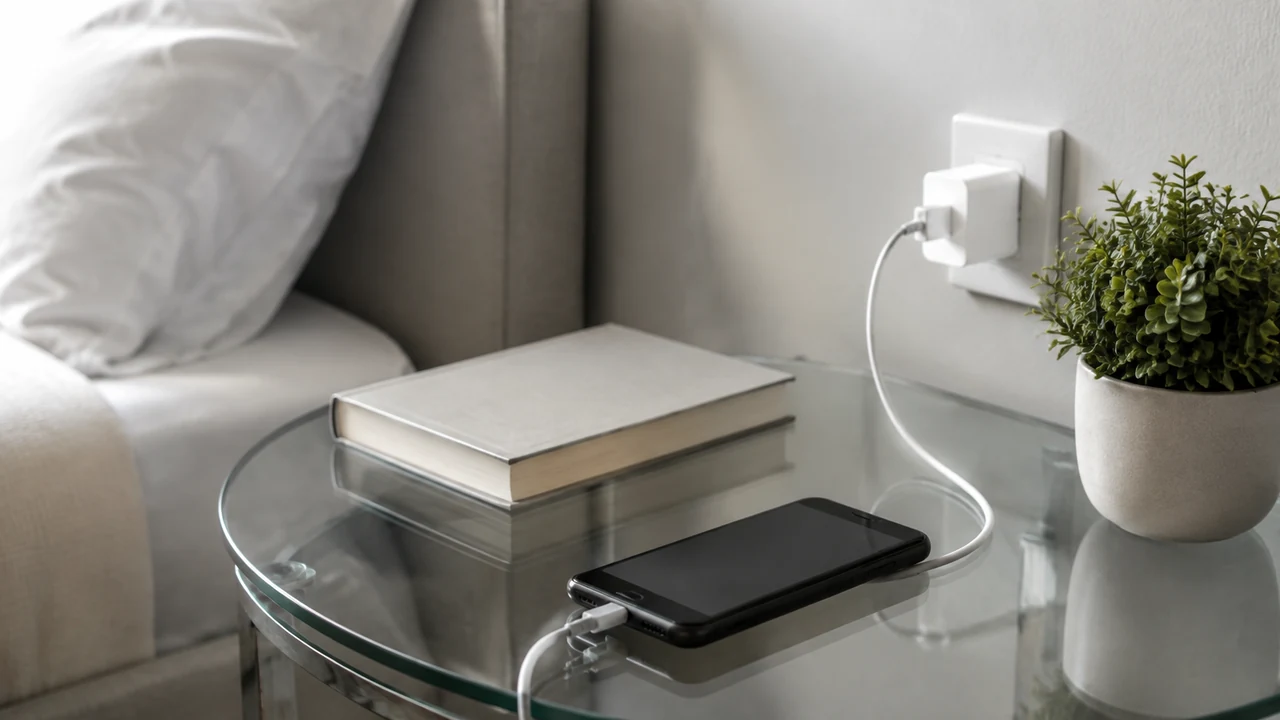
Heat deserves more attention than a magic percentage rule. Do not leave a phone charging under bedding, in direct sun, or in another environment outside its stated operating guidance. Remove an insulating case during charging only if the phone maker recommends it or if doing so safely resolves documented heat concerns. Do not put a hot phone in a refrigerator or freezer; rapid temperature change and moisture can create new problems.
A compatible charger with more capacity than the phone uses does not automatically charge faster, and connector shape alone does not establish compatibility. Match the adapter and cable to current device guidance. If you need replacements, the guide to choosing the right USB-C charger explains how to evaluate the complete charging setup.
Protect the port and charging equipment
Inspect the cable, adapter, outlet, and phone for damage, looseness, discoloration, unusual odor, or concerning heat. Stop using damaged equipment. Do not keep bending a cable until it works or secure an electrical failure with tape. Replace questionable components through an accountable source and follow local guidance for responsible recycling.
If the charging plug does not seat normally, turn the phone off and consult its official cleaning instructions. Never use metal tools, liquid, compressed air, or force unless the device maker explicitly directs that method for the exact model. Compact ports are easy to damage, and puncturing a battery or shorting contacts can be dangerous.
Prepare for long days instead of fighting them
Some days simply demand more energy than the phone can store. Before travel, navigation, an event, or emergency weather, charge ahead, download legitimately available offline information you need, and carry a known-compatible power bank or charger. Store accessories so connectors cannot be crushed or shorted, and follow transportation rules and product instructions.
Use the built-in low-power mode when appropriate. It may reduce background work, visual effects, performance, or network behavior, depending on the device. Learn what changes before relying on it during a critical task. Consider enabling it earlier on demanding days rather than waiting until the remaining charge becomes stressful.
Troubleshoot sudden battery drain carefully
Begin with context: a new app, update, poor signal, extended camera use, navigation, hotspot activity, or unusual temperature. Restart normally, update software, and observe. Change one variable at a time so you can identify what helped. Randomly disabling many services may conceal the pattern and create new failures.
If one app is responsible, check its settings, update it through the official store, and contact its support if needed. Before reinstalling, confirm its data is synchronized or backed up and that you know the login and recovery path. Deleting an app can remove local data; never assume the cloud has a copy.
For recurring shutdowns, swelling, screen separation, liquid exposure, burning odor, smoke, or extreme heat, stop normal troubleshooting. Move away from combustible material only if it is safe to handle, do not puncture or compress the phone, and follow the manufacturer’s and local emergency guidance. Arrange qualified service. Preserve your data through routine backups before trouble occurs rather than trying risky recovery from a damaged device.
Know when battery service makes sense
When service is appropriate, back up the phone, verify account recovery, and follow the manufacturer or qualified repair provider’s preparation instructions. Ask how your data, water resistance, warranty status, and replaced parts will be handled. Do not attempt a battery replacement unless the exact device is designed for user service and official instructions say you can perform it safely.
Avoid battery-saving habits that create bigger problems
Do not intentionally run the battery empty as a daily ritual unless official guidance for a specific diagnostic requires it. Do not continue charging a swollen or damaged phone. And do not factory-reset the device as an early experiment: a reset is disruptive and can destroy local-only data. Back up and exhaust supported, reversible checks first.
Frequently asked questions
Is it bad to charge my phone overnight?
Follow the current guidance for your exact phone and charging equipment. Use compatible, undamaged gear on a stable, ventilated surface, keep it away from bedding and heat, and consider any built-in charging optimization that suits your schedule.
Should I always stop charging at a particular percentage?
No single percentage rule fits every phone and routine. Manufacturer-supported optimization, temperature control, and convenient charging are more sustainable than constant monitoring. Use official model-specific guidance if you have a special storage or battery-care need.
Does low-power mode harm the phone?
It is a built-in feature intended to reduce consumption, though it may delay background activity or reduce some performance. Review what it changes on your phone and use it when those tradeoffs are acceptable.
Why did battery life change after an update?
Temporary background processing may occur, or an app may behave differently. Finish pending updates, allow ordinary use for a reasonable observation period, and review the battery summary. Seek official support if severe drain or heat continues.
Will turning off Wi-Fi and Bluetooth always save power?
Not necessarily enough to justify losing useful connections, and behavior varies. Focus on actual patterns in the battery summary and your signal conditions. Keep functions needed for safety, accessibility, wearables, or device recovery.
When is battery drain a safety concern?
Swelling, separation of the screen or case, smoke, burning odor, leaking, or extreme heat calls for immediate caution. Stop use and charging, avoid handling a dangerous device, and follow current manufacturer and local emergency instructions.
Final battery-life checklist
- Define the daily runtime problem you actually need to solve.
- Review built-in battery use across representative days.
- Adjust comfortable brightness, idle timeout, and low-value notifications.
- Investigate unexplained background activity without disabling critical services.
- Account for weak signal, navigation, video, games, and hotspot use.
- Keep software current through official update controls.
- Use compatible, undamaged charging equipment in a cool, open location.
- Plan compatible backup power for predictably demanding days.
- Back up before app deletion, repair, reset, or destructive troubleshooting.
- Escalate swelling, extreme heat, smoke, or physical damage immediately.
The most useful battery routine is one you can forget about most of the time. Make a few evidence-based adjustments, charge safely when convenient, prepare for unusually demanding days, and let the phone support your life instead of turning battery care into another daily obligation.